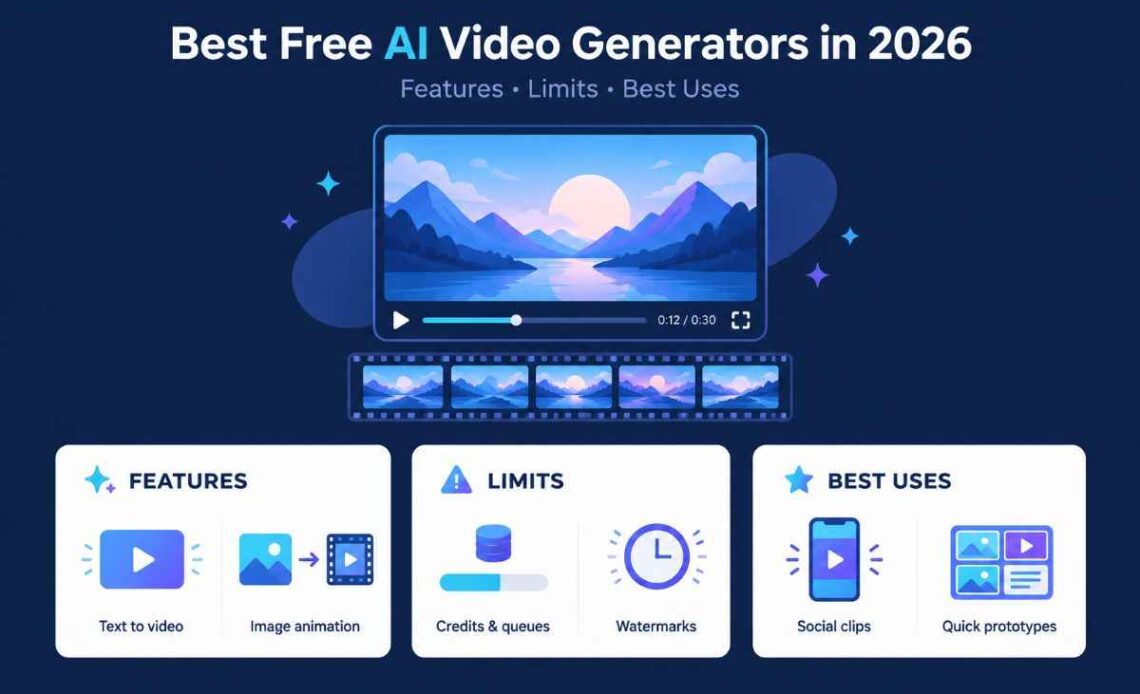
The best free AI video generators in 2026 can turn a written prompt or still image into moving footage, help assemble social videos, or speed up editing. But “free” does not always mean unlimited generations, watermark-free downloads or permission to use every result commercially.
For most beginners, Dreamina and CapCut are useful starting points: Dreamina offers daily credits for supported creative workflows, while CapCut combines AI video creation with an editor for captions, voiceovers and finishing touches. Runway is worth considering for a limited trial of its creative tools. The right choice depends on the video you want to make and the limits you can accept.
Free plans change frequently, so check the allowance shown in your account before building a project around it.
This guide compares practical options, their strengths and the details to verify before you start.
Table of Contents
Best Free AI Video Generators at a Glance
| Tool | Best use | Free access to check | Main consideration |
|---|---|---|---|
| Dreamina | Short clips from prompts or images | Daily credits for supported workflows | Credit cost varies by model and settings |
| CapCut | Social videos and editing | Free AI features and editing tools, subject to availability | Specific AI features may have separate limits |
| Runway | Exploring AI video and creative tools | 125 one-time credits | Credits do not renew |
| Kling AI | Motion-focused generated clips | Check the allowance in your account | Free access and model availability can vary |
| Pika | Creative effects and transformations | Free account, but no monthly credits listed | Generating videos may require purchased credits |
| Canva | Video content within a design workflow | Free plan with an AI allowance | AI use is shared across supported features |
| InVideo AI | Script-led video drafts | Limited free credits that reset weekly | Check current generation and export restrictions |
7 Best Free AI Video Generators
These tools do different jobs. Some generate new footage from a prompt; others are stronger at assembling and editing a finished video. Compare the workflow, not just the number of tools advertised on the homepage.
1. Dreamina: Best for Short AI Video Experiments
Dreamina is a practical first choice if you want to create a short clip from a text prompt or animate an existing image. Its workflow lets you explore visual ideas, choose from the models available to your account and adjust the generation settings before creating a video.
Dreamina currently advertises 120 free credits per day for supported image and video workflows. This is a published allowance, not a promise of a fixed number of free videos. The credits required depend on the selected model, duration, resolution and other settings. Check the cost shown in the interface before generating.
Best for: Beginners, visual concepts, product-shot experiments and short social media clips.
Limitations: Free credits are finite, and available features and export conditions can differ. Do not assume every model, resolution or download option is included.
Try animating one image first. A short, controlled camera movement is easier to evaluate than a complicated scene with several people and actions.
2. CapCut: Best for Creating and Finishing Social Videos
CapCut is useful when your goal is a publishable social video rather than a standalone AI-generated shot. Its AI video tools can help turn a prompt or script into a draft, while the editor supports tasks such as replacing visuals, adjusting timing, adding captions and working with voiceovers.
This makes it a strong option for creators producing Instagram Reels, TikTok videos, YouTube Shorts and simple promotional content. You can generate a starting point and then refine the pacing and presentation in the same editing workflow.
Best for: Short-form content, explainers, product promotions and creators who want editing tools alongside AI assistance.
Limitations: The availability and cost of specific AI models or generation features can vary by platform, account and region. Check the selected feature and export settings rather than assuming every advertised tool is unlimited and free.
CapCut is especially worth trying if you already edit videos yourself. AI can help with the first draft, but you retain control over the final sequence.
3. Runway: Best for Testing a Creative AI Workspace
Runway combines generative tools with a broader creative workflow. It is worth exploring if you want to understand how AI-generated visuals could fit into a more developed video project.
Its official free-plan documentation lists 125 one-time credits and 5 GB of asset storage. The credits do not expire, but they also do not refresh after use. Runway says the selection of models and tools available on the free plan can change, so sign in to confirm that the generation mode you need is included.
Best for: Testing generative workflows and deciding whether a wider creative platform suits your needs.
Limitations: The credit balance is a one-time allocation, not a recurring monthly allowance. The current free-plan model selection may not support every video workflow.
Before spending credits, check the cost of a generation and make sure the relevant tool is available to free users.
4. Kling AI: Worth Checking for Motion-Focused Clips
Kling AI is another option for creators interested in generating scenes with detailed movement. Depending on the model and features available to your account, workflows can include text-to-video and image-to-video generation.
Its main attraction is the ability to experiment with how subjects and cameras move through a scene. It can be useful for cinematic concepts, short visual sequences and creative tests where motion matters as much as the initial image.
Best for: Motion-led clips, visual storytelling and experiments with generated scenes.
Limitations: Do not rely on a free credit count quoted in an older article. Confirm the current allowance, available model, queue conditions and export options in your own account before planning a project.
For a fair test, give each tool the same prompt and compare subject consistency, movement, unwanted changes and how closely the result follows your instructions.
5. Pika: Best Considered for Creative Effects
Pika is known for playful visual transformations and effects that can make short clips feel more imaginative. It may suit creators who want unusual transitions, stylised motion or eye-catching experiments for social media.
However, there is an important distinction between having a free account and having free generation credits. Pika’s current pricing page lists zero monthly credits on its Free plan, with credit packs available separately. It also lists no commercial licence for that tier. <Cite refs={[“turn662282search4”]}/>
Best for: Creators exploring Pika’s effects or evaluating its paid generation options.
Limitations: A free account does not guarantee free video generations. Check whether your account has any current promotional allowance before choosing it for a project with no budget.
If you need recurring free generations, compare Pika with tools that publish a daily or weekly allowance.
6. Canva: Best for Videos That Need Design and Branding
Canva is useful when video is only one part of a wider content project. You can combine video, text, templates, graphics and brand elements in one design environment, which is helpful for social posts, presentations and marketing assets.
Canva’s free plan includes an AI allowance, but different AI tools can consume that allowance at different rates. More advanced AI video features may require a higher-tier plan. Check the current Canva pricing page and the access shown for the specific feature you want.
Best for: Branded social content, simple promotional videos and creators who already use Canva for design.
Limitations: The free allowance is not an unlimited supply of AI video generations. Access to a particular video model or premium feature should be confirmed before you begin.
Choose Canva when layout, typography and brand consistency matter as much as the generated footage.
7. InVideo AI: Best for Script-Led Video Drafts
InVideo AI is designed for a workflow in which you start with an idea or script and build a video around it. It can be useful for explainers, educational content and draft videos that combine visuals with narration.
Its help centre says the free plan provides limited credits without requiring card details, with the quota resetting weekly on Monday at 00:00 UTC. The credits are shared across supported features, and the amount consumed depends on the operation. <Cite refs={[“turn662282search7”]}/>
Best for: Script-led drafts, narrated explainers and content creators who want help assembling a video.
Limitations: The available credits are limited, and export or usage conditions may differ by plan. Check the current terms before using a result for a client or commercial campaign.
This is a different kind of tool from a generator that creates one short cinematic shot. Choose it when you need help assembling a larger video rather than just generating footage.
How to Choose the Right Free AI Video Generator
Start with the finished video you want, then compare the tools against five practical questions.
- Can it create the type of video you need? Check whether the tool supports text-to-video, image-to-video, scripted video assembly, or simply editing existing footage.
- How often does the free allowance refresh? Daily or weekly credits can support ongoing experiments. One-time credits are better treated as a trial.
- Can you download the result you need? Check resolution, watermark conditions, file format and export restrictions.
- Can you use the result commercially? Read the current plan terms if the video is for a business, paid advertisement or client. A free account does not automatically grant commercial rights.
- How much editing will be needed? A visually impressive clip may still need trimming, captions, sound correction or replacement of distorted details.
A useful test is to generate one short scene with a clear subject and a simple action. Review the result before spending more credits. Look for changes in faces, hands, text, object shapes, lighting and background details.
Tips for Getting Better Results Without Paying
You can get more value from limited free credits by making each attempt more deliberate.
- Describe one clear action. A person opening a door is easier to direct than a scene with several people doing unrelated things.
- Include camera movement. Specify whether you want a static shot, slow pan, tracking movement or close-up.
- Keep prompts specific. State the subject, setting, lighting, mood and desired movement rather than relying on vague words such as “amazing.”
- Use an image when appearance matters. Image-to-video can help establish the initial composition, although the model may still change details during motion.
- Change one thing per retry. If the first result is nearly right, adjust the movement or camera direction rather than rewriting the whole prompt.
- Save successful prompts. A small library of useful prompts can reduce repeated experimentation.
Before uploading images, audio or footage, make sure you have the necessary rights and avoid sharing sensitive material.
Frequently Asked Questions
What is the best free AI video generator in 2026?
Dreamina is a useful starting point for short prompt-based or image-based experiments, while CapCut is convenient for creating and editing social videos. Runway is worth trying if you want to evaluate a broader creative workspace. The best option depends on the specific free features available to your account.
Are free AI video generators really free?
Some provide recurring credits, while others offer a one-time credit balance or a free account without included generation credits. Watermarks, resolution limits, queues and usage rights can also vary. Check the current plan before creating a project.
Can I use free AI-generated videos commercially?
It depends on the tool, plan and content. Read the applicable terms for commercial use, and make sure you have rights to any images, voices, music, logos or other material included in the video.
Can I make YouTube Shorts or Instagram Reels with these tools?
Yes. AI-generated clips can be used as parts of short-form videos, and editing tools such as CapCut can help with captions, pacing and vertical formats. Check the export settings and review the finished video before publishing.
Do free AI video generators add watermarks?
Some do, while others advertise watermark-free downloads under particular plans. Watermark rules can differ between tools and account tiers. Check the download conditions for your selected model and plan rather than relying on a general claim about the platform.
Final Recommendation
For a simple starting point, try Dreamina for short AI-generated clips and CapCut when you also need editing and social-ready formatting. Use Runway to explore its limited free allocation, and consider Canva or InVideo AI when your project needs design or script-led assembly.
Most importantly, compare the usable free allowance, export rules and licence terms, not just the quality of a promotional demo. A tool is genuinely useful when it can produce the video you need within the limits you can accept.